Ability to Compare Folios Side by Side
Stay enables users to compare folios from different accounts, including reservations, groups, and house accounts, side by side within the All Folios tab of a primary account. Users can also drag and drop transactions between the folios of the accounts.
This enhancement allows users to view multiple account folios on a single screen for improved visibility and comparison.
The Compare Folios Side-by-side feature setting must be enabled to use this feature.
When this feature is enabled, users can view the All Folios tab in the Folios section of an account even when there is only folio in the account. Previously, the All Folios tab was displayed only when multiple folios were present in an account. The following new fields are displayed in this tab:
-
Account: Users can search for a reservation, group, or house account using the account name or confirmation ID.
-
Folio: This is a single-select drop-down list that displays the folios of a selected account. Users can select the preferred folio for comparison.
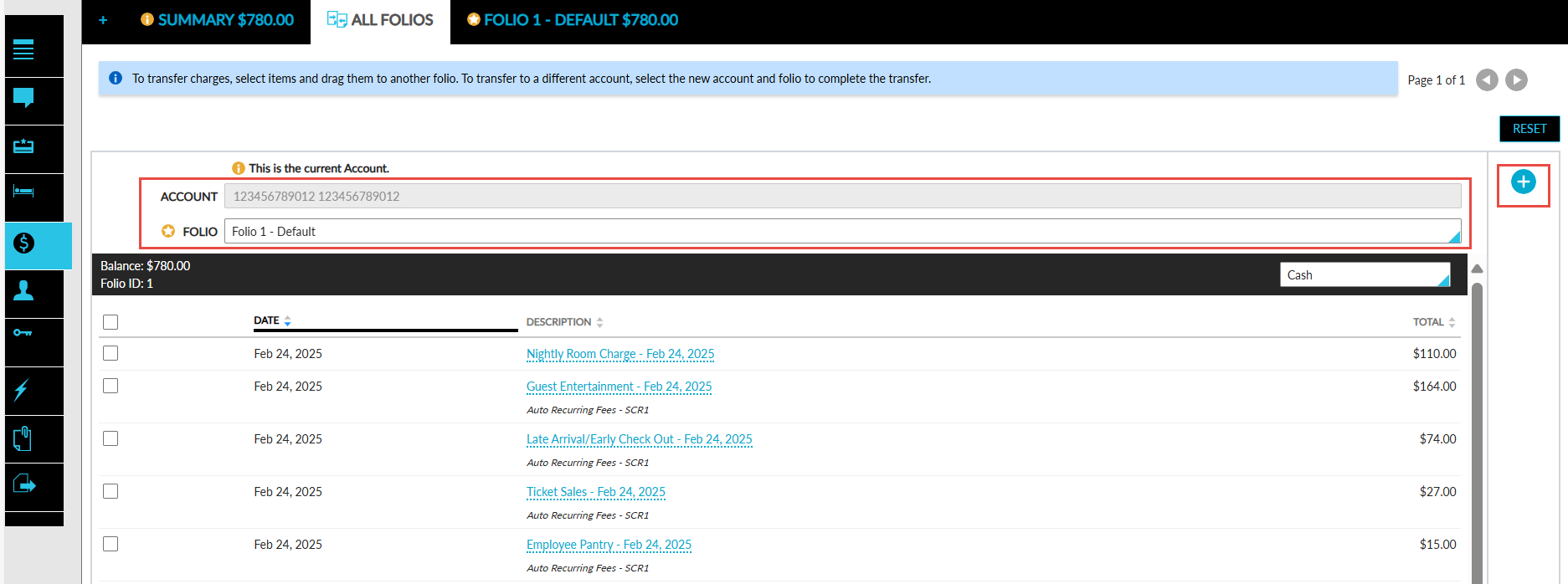
To compare folios of different accounts, users must click on the (+) icon displayed in the All Folios tab of an account. When clicked, a new section appears with the mentioned fields that allow users to select the account and folio to be compared.
Only the guest and third-party folios of reservations, groups, and house accounts can be compared. Comp folios and package folios cannot be compared. When users select a folio in the Folio drop-down list, the same folio will not be displayed again for selection.
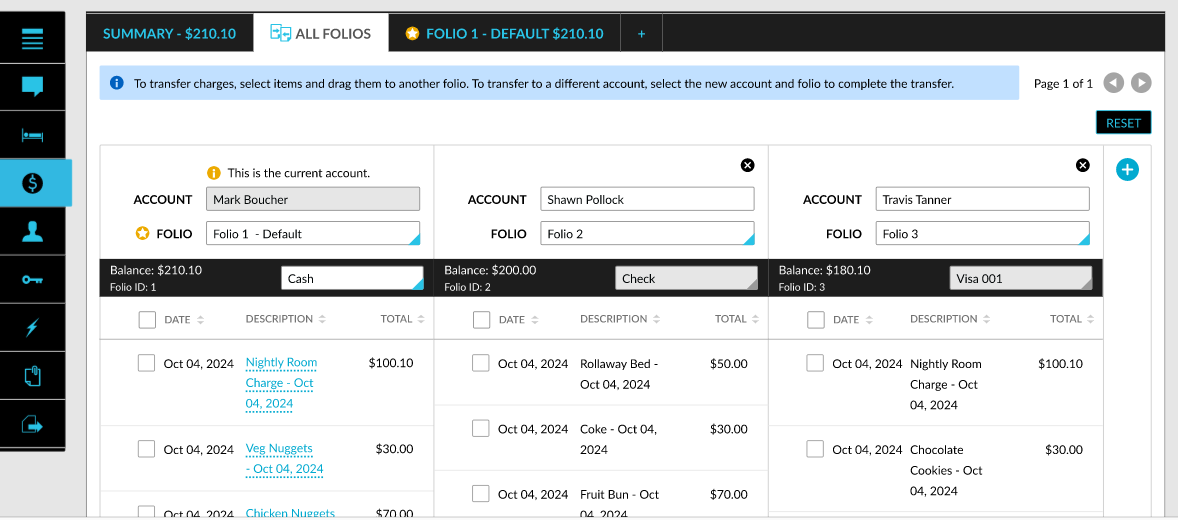
Comparison of folios across accounts is limited to 3 pages with 3 folios per page. After the 3rd folio is selected for a page, when users click the (+) icon, the folio is added to the next page. Once the page limit of 3 is reached, the (+) icon in the current account’s All Folios tab will not be displayed.
When comparing folios between accounts, the following columns are displayed for each account’s folios:
-
Date
-
Description
-
Total
The Quantity column is displayed only when folios are compared within the current account. When users select the Print option in the current account, only the current account’s folio details are printed.
Users can remove an account from comparison by clicking on the close icon displayed for a section. When clicked, the Confirmation pop-up screen appears that displays the following message: Are you sure you do not want to include this account?
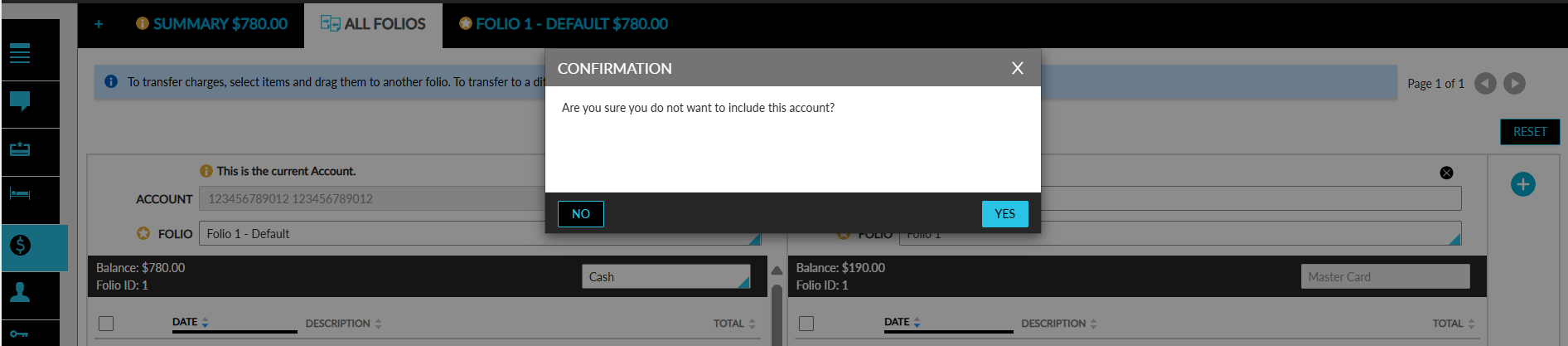
The close icon will not be displayed for the current account. Users can revert to the comparison view of the current account by clicking on the Reset option. When clicked, all the accounts and folios selected for comparison are removed and the details of only the current account are displayed in the All Folios tab.
Drag and Drop Charges Between Accounts
Users can select either single or multiple transactions from an account and transfer the selected charges to another account by dragging and dropping the selected charges in the destination folio. Once the charges are transferred successfully, the transfer history and reason will be displayed. Users can also transfer charges selected in an account by clicking on the Transfer button.
When charges from different accounts are selected, the Transfer button will be disabled. Users with the following permissions assigned can select a closed account and transfer charges to the account:
-
WriteClosedGroup permission is required to transfer charges to a closed group
-
WriteClosedHouseAccounts is required to transfer charges to a closed house account
-
WriteClosedReservations is required to transfer charges to closed reservations
Users with the Stay_OverrideClosedFolio permission assigned can select a closed folio in an account and transfer charges to the folio. When this permission is not assigned, the Override pop-up screen appears to allow users to enter the credentials of a different user with the permission assigned to override and complete the transfer.